
The bugs we keep finding in Lovable, Bolt, and Cursor apps
The twelve vibe coding bugs that show up most often in AI-built apps, why the coding agent misses each one, and how to check for it yourself.
 By Kris, Co-founder and Senior Software Architect
Why vibe coding bugs follow a pattern
We review a lot of apps built with Lovable, Bolt, Cursor, Replit, and Claude Code. Vibe coding bugs, the defects that show up after a coding agent generates most of an app, are not random. They cluster into a short list of patterns, and the same twelve show up again and again regardless of which tool built the app.
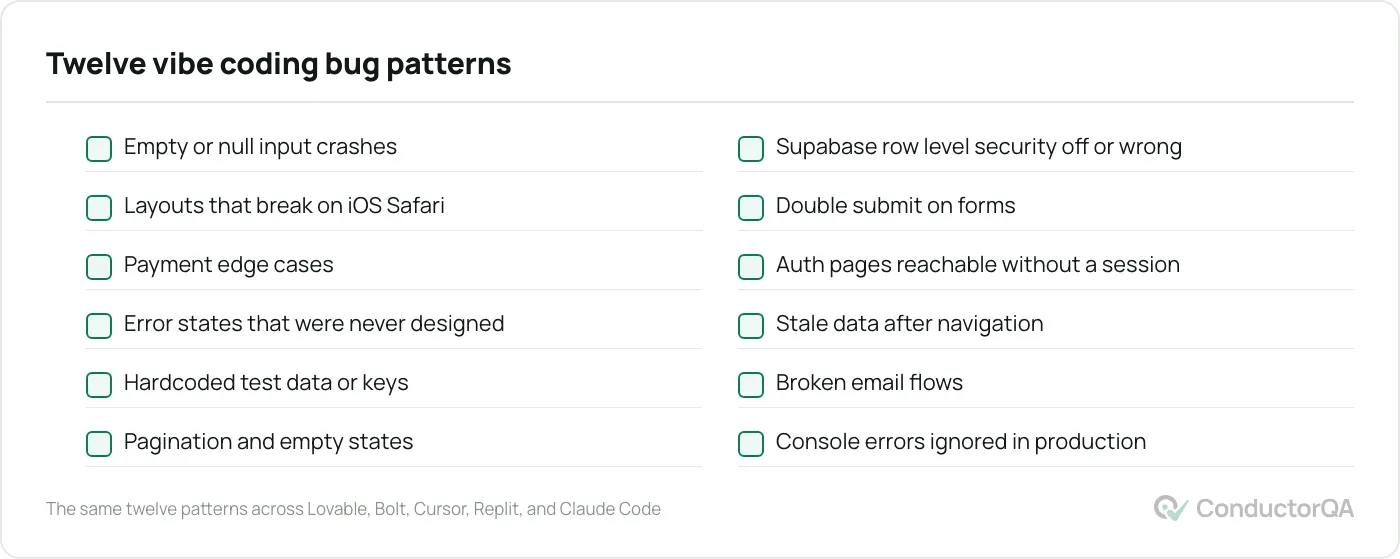
The reason is not that the tools are careless. A coding agent is optimized to produce code that satisfies the prompt and compiles. It is not optimized to ask what happens when a user pastes an empty string into a field, or what a payment form does when a card is declined, or whether a database policy actually blocks another user’s request instead of actually blocking it. Those questions require running the app as an adversary, not as the person who asked for the feature. Below are the twelve patterns we check for first, with why the agent tends to miss each one, how to check for it yourself, and what the fix usually looks like.
1. Empty or null input crashes
A coding agent writes the form, wires it to the database, and tests it with reasonable input, like a real name and a valid email. It rarely tests what happens when a field is submitted empty, when an optional field is null on the way back from the database, or when an array the UI expects is empty.
Why the agent misses it: The agent’s own verification loop usually runs the happy path once to confirm the feature works, then moves on. Empty and null states do not appear in the prompt, so there is no instruction telling the agent to handle them.
How to check it yourself:
- Submit every form with each field left blank, one at a time.
- Load every page that lists something (orders, comments, search results) before any data exists.
- Open the browser console while you do both and watch for errors, rather than only noting a blank screen.
What the fix usually is: Add explicit checks for empty strings, null, and empty arrays before the code reads a property off them, and render a defined empty state instead of letting the page crash.
2. Supabase row level security not enabled or wrong
Lovable and Bolt both default to Supabase for the database. Supabase ships with row level security, RLS, off by default on new tables. An agent that creates a table to satisfy a feature request will frequently skip turning RLS on, or turn it on with a policy that is too permissive to matter.
Why the agent misses it: RLS is a database-level setting, not a line of application code. The feature works correctly in the browser you are testing from, because you are logged in as the account that owns the data. The gap only shows up when a second account tries to read the first account’s rows.
How to check it yourself:
- Create two test accounts and load data as the first one.
- Log in as the second account and try to fetch the first account’s records, either through the app’s UI or directly against the Supabase REST endpoint with the second account’s token.
- In the Supabase dashboard, open each table’s Authentication tab and confirm RLS is enabled with a policy that filters by the requesting user, not a policy that allows all reads.
What the fix usually is: Enable RLS on every table holding user data and write a policy that compares the row’s owner column to auth.uid().
3. Layouts that break on iOS Safari
An app built and reviewed on a laptop looks correct. On an iPhone it can fail in ways that never showed up in development: a hero section that fills the screen on desktop but leaves a gap or cuts off content when using 100vh, an input field that zooms the whole page in in response to a tap, or a fixed footer that the keyboard covers or pushes off screen.
Why the agent misses it: Coding agents preview apps in a desktop browser or a generic emulator. iOS Safari’s dynamic toolbar height and software keyboard behavior are specific to real devices and do not reproduce in most preview environments.
How to check it yourself:
- Open the app on an actual iPhone in Safari, not only a resized desktop browser window.
- Tap into every text input and confirm the page does not zoom and the input stays visible above the keyboard.
- Scroll any page using
100vhor a fixed footer and check that nothing is clipped at the top or bottom.
What the fix usually is: Use 100dvh instead of 100vh, set input font size to at least 16 pixels to stop iOS from auto-zooming, and avoid fixed-position elements at the bottom of forms.
4. Double submit on forms
A user taps a submit button, nothing visibly happens for a second, and they tap again. Without protection, that creates two orders, two accounts, or two support tickets from one action.
Why the agent misses it: The agent tests a single, deliberate click. A second click within the same second is a timing condition that only appears under real human behavior, usually on a slow connection or a slow button.
How to check it yourself:
- Click a submit button twice within a second of each other on a slow network, which you can simulate in your browser’s developer tools.
- Check the database or the resulting list for duplicate records.
- Repeat on a payment or signup form specifically, since duplicates there have the highest cost.
What the fix usually is: Disable the submit button immediately on click and keep it disabled until the request resolves, and enforce idempotency on the server side for anything that charges money or creates an account.
5. Payment edge cases
The happy path, a successful charge with a valid card, is the case every generated checkout handles. Declined cards, expired cards, and webhooks that arrive late or out of order are not.
Why the agent misses it: Testing a decline requires using a specific test card number and reading the resulting error state, and testing a webhook requires simulating an asynchronous event, both of which are extra steps beyond confirming the checkout button works.
How to check it yourself:
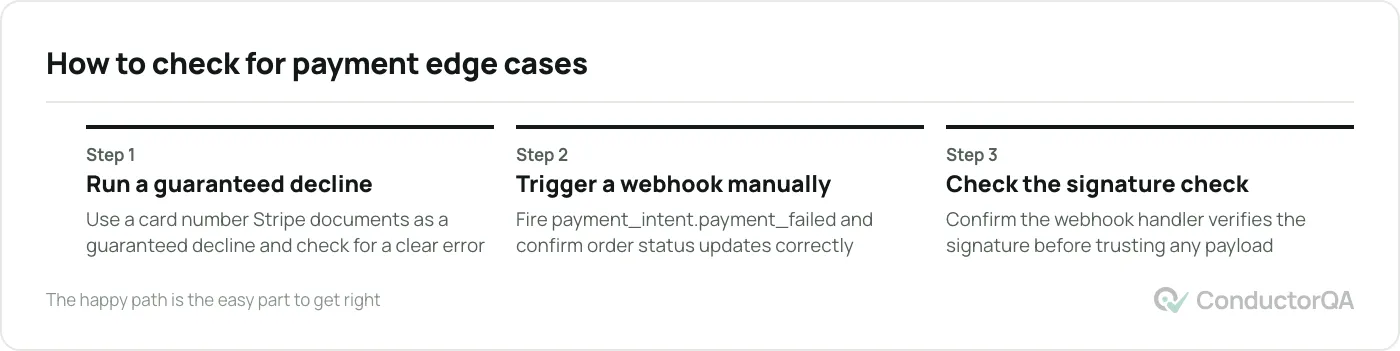
- Run a payment with a card number that Stripe documents as a guaranteed decline, and confirm the user sees a clear error, not a stuck spinner.
- Trigger a webhook event manually, for example
payment_intent.payment_failed, and confirm the app updates order status correctly. - Check that the webhook handler verifies the signature header rather than trusting any payload sent to its endpoint.
What the fix usually is: Handle each Stripe decline code with a specific user-facing message, and verify every webhook signature before acting on its payload. See our payment testing guide for the full set of cases to run before launch.
6. Auth pages reachable without a session
The sign-in page correctly blocks unauthenticated users from the dashboard. The settings page, the billing page, or an API route added two features later often does not get the same check.
Why the agent misses it: Auth guards get added when a page is first built, usually on the main dashboard route. Later pages added in separate prompts can inherit the layout without inheriting the guard, especially if the agent is told to “add a settings page” rather than “add a protected settings page.”
How to check it yourself:
- Log out, then paste the URL of every protected page directly into the address bar.
- Open your browser’s network tab and call the app’s API routes directly without an auth token.
- Check any route that was added after the main auth flow was built, since those are the ones most likely to have been missed.
What the fix usually is: Apply the auth check at the layout or middleware level so every route under it is protected by default, rather than checking session state inside each page individually.
7. Error states that were never designed
The agent builds the form, the list, and the success state. It rarely builds what the user sees when the network request fails, the server returns a 500, or the data genuinely cannot load.
Why the agent misses it: An error state requires imagining a failure that the agent cannot easily reproduce in its own test run, where the backend is responding normally. Without a prompt asking for it directly, there is nothing pushing the agent to design for it.
How to check it yourself:
- Turn off your network connection mid-request and watch what the page shows.
- Use your browser’s developer tools to block a specific API call and reload the page that depends on it.
- Look for a blank screen, an infinite spinner, or a raw error message as the result, all three of which mean the state was never designed.
What the fix usually is: Add a defined error state to every data-fetching component with a message and a retry action, instead of letting the failure fall through to a blank screen.
8. Stale data after navigation
A user edits a record, navigates back to the list, and sees the old value. The edit worked. The list did not refresh.
Why the agent misses it: Client-side caching and local state updates get updated for the screen you edited, and the same update is often forgotten everywhere else that same data appears.
How to check it yourself:
- Edit a record, then navigate to a different page and back.
- Edit a record in one browser tab and check whether a second tab open to the same list reflects the change on its next natural reload.
- Check any dashboard count or summary number against the detail page it is summarizing.
What the fix usually is: Invalidate or refetch the relevant cache key after any mutation, rather than relying on the single component that made the change to update everything that displays the same data.
9. Hardcoded test data or keys
Placeholder API keys, test-mode payment keys, or sample records created during development end up shipped to production because nothing forces a review of what the agent left behind.
Why the agent misses it: The agent’s job during development is to get something working quickly, and test keys or hardcoded values work exactly as well as production ones for that purpose. There is no automatic signal that distinguishes a key meant for testing from one meant to ship.
How to check it yourself:
- Search the entire codebase for the strings
test,sk_test,pk_test, and any API key patterns. - Check environment variable files for values that still point at a test account or a staging URL.
- Check the production database for records with obviously fake names or emails left over from development.
What the fix usually is: Move all keys to environment variables set per environment, and delete seed or sample data before the first real user signs up.
10. Broken email flows
Password reset, magic link, and receipt emails are built once, tested by sending one email to the developer’s own inbox, and never tested for the cases that actually cause support tickets: an expired reset link, a magic link opened on a different device than it was requested on, or a receipt that never arrives because the sending domain is not verified.
Why the agent misses it: Email delivery depends on configuration outside the codebase, like DNS records and sending domain verification, that the agent cannot see or test from inside the editor.
How to check it yourself:
- Request a password reset, wait past the link’s expiry window, and confirm the expired link shows a clear message instead of a crash.
- Request a magic link on one device and open it on another to confirm the intended behavior.
- Complete a real purchase or signup and confirm the receipt or welcome email lands in an inbox, not a spam folder.
What the fix usually is: Verify the sending domain with the email provider, set and test an explicit expiry message for reset and magic links, and send a real test email through the production sending path before launch.
11. Pagination and empty states
A list with twenty items looks finished. The same list with zero items, with exactly one page, or with ten thousand items often is not, because the agent tested with whatever sample size felt representative at the time.
Why the agent misses it: Pagination logic has edge cases at its boundaries, specifically zero results and the last page, that do not show up when testing with a comfortable middle amount of data.
How to check it yourself:
- Clear all data and load the list to see what zero results looks like.
- Add exactly enough records to fill one page plus one, and confirm the second page loads correctly.
- Jump directly to the last page and confirm it does not show a blank gap where a full page of items should have been.
What the fix usually is: Design and build an explicit empty state, and test the off-by-one boundary where the next page has exactly one item.
12. Console errors ignored in production
Every one of the first eleven patterns tends to throw an error into the browser console before it fails visibly, or sometimes instead of failing visibly at all. A console full of red text that nobody looks at is a leading indicator of a bug the user has not reported yet.
Why the agent misses it: The coding agent’s own preview typically shows a UI that looks correct, and a visually correct screen with console errors underneath it still gets called finished.
How to check it yourself:
- Open developer tools on every core page and watch the console during normal use, not only on the initial load.
- Treat any red error as something to investigate, even if the page appears to work.
- Repeat the check on mobile Safari, since some errors only appear on that engine. See our guide on reading console errors for what each common error usually means.
What the fix usually is: Fix the underlying cause rather than suppressing the error, and add the check to your release process so a clean console becomes a release requirement, not an afterthought.
Where ConductorQA fits
These twelve patterns are the starting checklist our team runs against every app built with Lovable, Bolt, Cursor, or similar tools, reproduced by hand on real phones and browsers rather than assumed from the code. If you want a second set of eyes before you hand the app to real users, our QA audit covers these checks and the rest of a full pass, ranked by severity, within 48 hours of your scheduled start slot.
Frequently asked questions
Are vibe coding bugs different from normal software bugs?
Not in kind. The underlying mistakes, like missing validation or a missing auth check, are bugs any codebase can have. What differs is the distribution: apps built quickly with a coding agent concentrate in the twelve patterns above because the agent optimizes for a working happy path, not for adversarial input.
Can I ask the coding agent to fix these itself?
Yes, for most of them, once you know which pattern to point at. Describing the specific case, for example “test what happens when this form is submitted empty” or “confirm row level security blocks a second user,” gets better results than a general instruction to “find bugs,” because the agent can act on a concrete test but cannot reliably invent the adversarial cases on its own.
Do these bugs apply to apps built with Claude Code or Replit too?
Yes. The patterns are tied to how coding agents test their own output, not to any one tool. We see the same twelve across Lovable, Bolt, Cursor, Replit, and Claude Code projects.
How long does it take to check all twelve manually?
For a small app with under fifteen routes, a careful pass through all twelve patterns typically takes a few hours for one person. That is the baseline our fixed-price audits are scoped against, since the checks require running the app on real devices rather than reading the code.